If your browser get infected with malicious extension or malware then it will frequently shows the following behavior.
- Sticky Pop-up ads & automatic opening of new tabs.
- Your Chrome browser homepage gets changing without your permission.
- Unwanted and annoying Chrome toolbars or extensions frequently coming.
- Every time redirected to some other pages or ads.
- Frequently getting alerts regarding infected device and virus attack.
If you too encountering any of the above issue in your respective browser then resetting the browser will surely fix your problem.
How To Remove Malicious Extensions/Malware From Browsers
-
Remove Malicious Malware From Internet Explorer
-
Remove Malicious Malware From Chrome
-
Remove Malicious Malware From Firefox
-
Remove Malicious Malware From Safari
-
Remove Malicious Malware From Microsoft Edge
Remove Malicious Malware From Internet Explorer(IE)
1: Remove unwanted add-ons
- First of all open your Internet Explorer. After then tap to the Gear icon present on the top-right corner. This will show a drop down list from which you have to choose the manage Add-ons
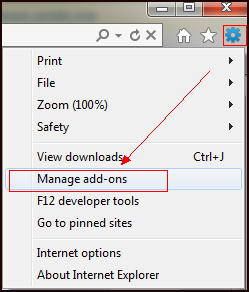
- After getting into the Manage Add-ons Windows you need to disable the suspicious add-ons by tapping to the Disable.

2: Remove The Malicious Site Url
- If you are noticing that your browser is directing to some specific page then you need to remove that malicious site URL.
- For this, just tap to the gear icon present on the top-right corner of your Internet Explorer page. After then from the drop-down menu choose the internet option.
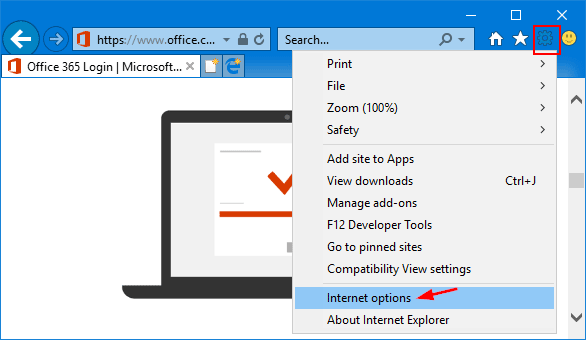
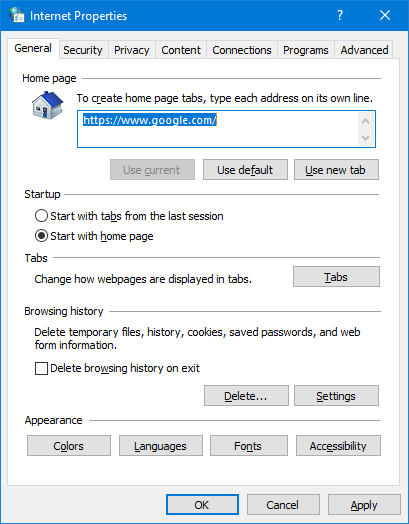
- Now get into the General tab and from the homepage field remove the malicious URL with the preferable domain name. Tap to the Save option for applying all the changes you have done.
3: Reset Internet Explorer
- Click the gear icon present on the top-right corner of IE (Internet Explorer). From the drop down menu, choose the “Internet” options. After then go to the “Advanced” tab.
- In the advanced tab, select the “Reset” option. This will open a new Window in which you have to delete the personal settings. Choose the reset option once more to complete the process.

Remove Malicious Malware From Google Chrome
In Google Chrome you will get such option which will reset the Chrome browser to its default settings. Don’t worry resetting the browser settings won’t remove your saved bookmark neither it change the password. It just reset unwanted modifications happened due to installation of other programs.
- Open Your Browser Settings
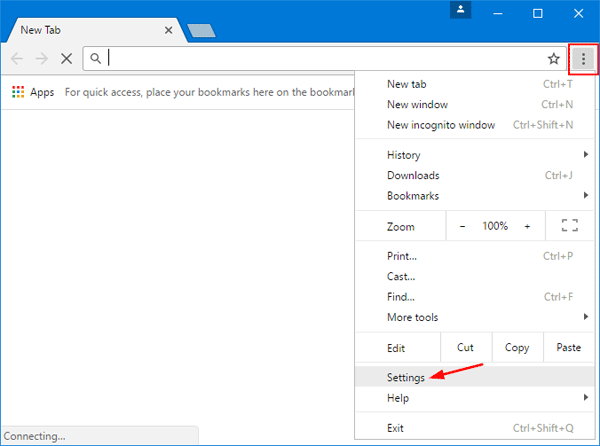
Open the Chrome first. At the top right corner, tap to this (three dot) sign. This will open the drop-down menu. From which you have to hit the Settings option.
- Advanced Setting
In the opened settings page scroll down to the page here you will get the “Advanced” option. Tap on this Advanced option.
- Reset The Browser Setting
- Now you are in the Chrome’s Advanced settings.

- Scroll down, you will get a section of “Reset and clean up”.
- In this section you need to choose the “Reset settings to their original defaults” option button.

- Make Confirmation For The Reset Operation.
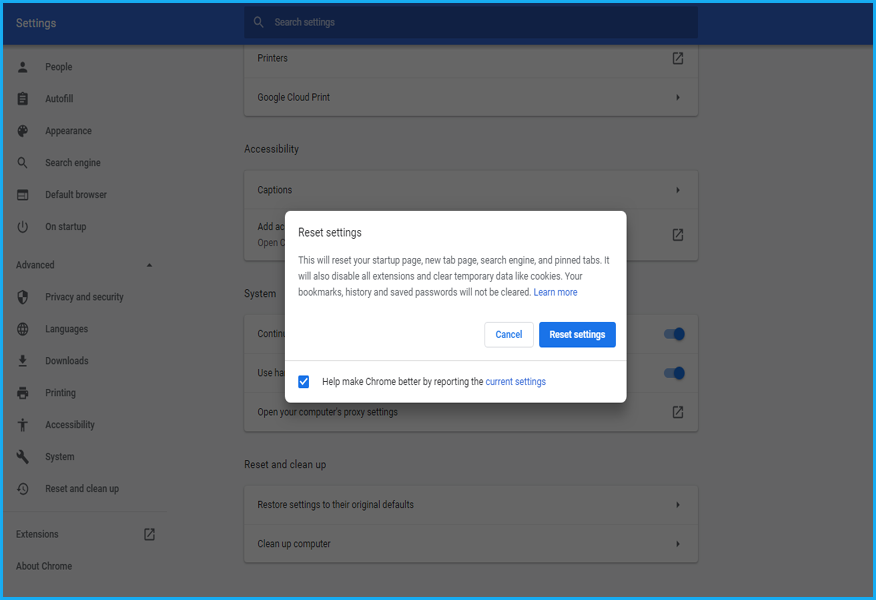
Now you will get a confirmation dialog box with the “component detail that gets restored in its default state. Do you want it continue it with the reset process.” After checking it out completely, just make a tap to the reset setting option.
Remove Malicious Malware From Mozilla Firefox
If you are Firefox is facing the similar issues mentioned above then resetting it will surely help you out. Through this method your are restoring your Firefox browser back to its default state.
This method won’t hamper any of your saved essential information like web form auto-fill information, browsing history, passwords, bookmarks etc.
- Help Menu
- Open your Firefox browser. At the top right corner, tap to the three horizontal line sign.
- Now from the drop down menu choose the “Help“option.

- Troubleshooting Information
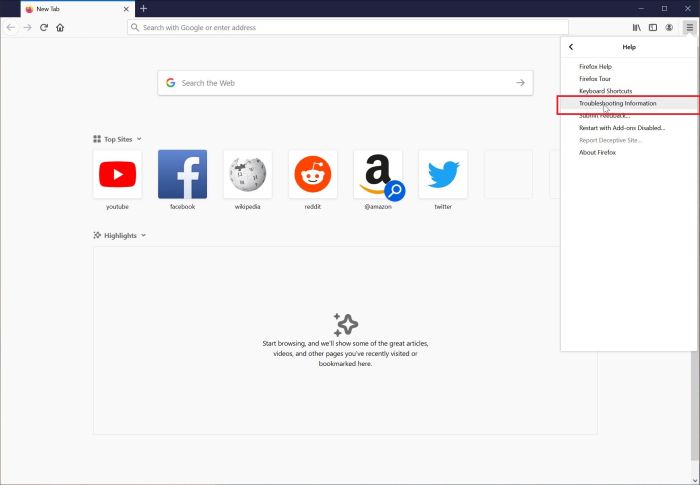
From the opened Help menu, tap to the “Troubleshooting Information“option.
- Refresh Firefox
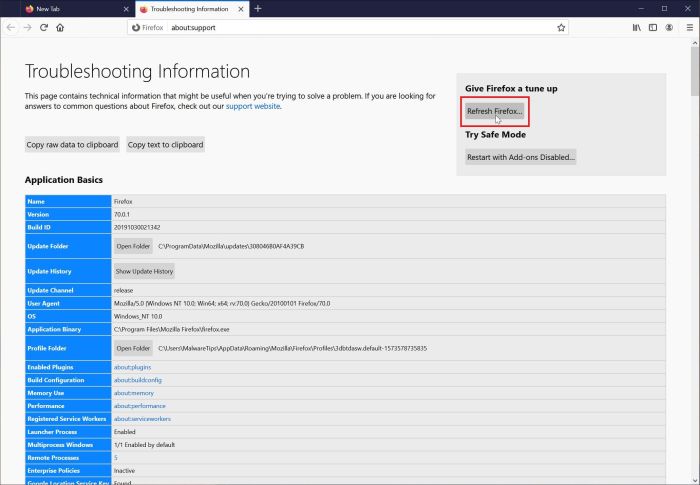
In the “Troubleshooting Information” page upper right corner tap to the option “Refresh Firefox”.
- Make Confirmation
To continue the process, tap to the “Refresh Firefox” option in the opened confirmation window.

- Finish It Up
Firefox will close itself and revert back into its default settings. After the completion, Window will show the list of information which was imported. Tap to the “finish” option.
Remove Malicious Malware From Safari
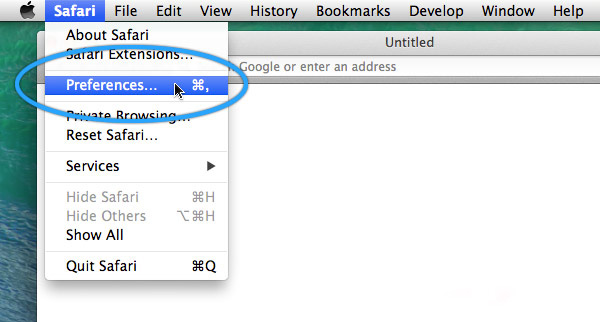
- Go to the Safari’s “Preferences” option
Go to the menu bar and tap to the “Safari” menu. After then choose the “Preferences”.
- Check the Homepage field
- On your system screen a new Window of safari preferences seems opened. In this Window you have to go to the “General”
- Some creepy malware changes the default homepage of your browser. So, to correct this, under the general tab go to the Homepage field.
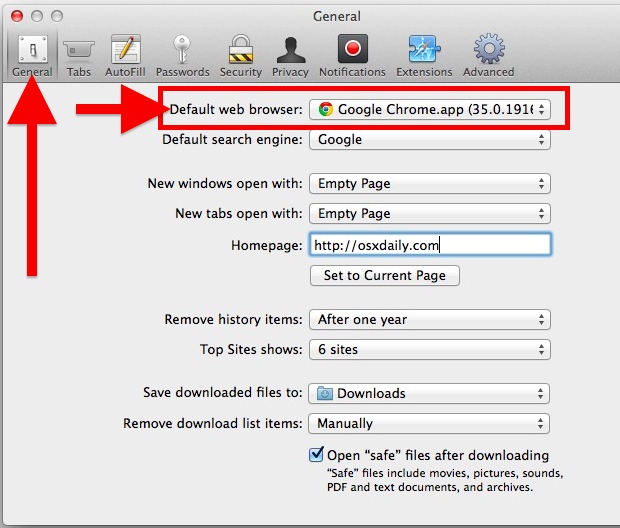
- Put the web page which you want to set as your default start-up page.
- Find The “Extensions” And Uninstall It
- Now tap to the “Extensions” tab. This will open a Window with all the list of extension installed on your Safari
- Fetch that malicious or problem causing extension and tap to the uninstall option for removing it.
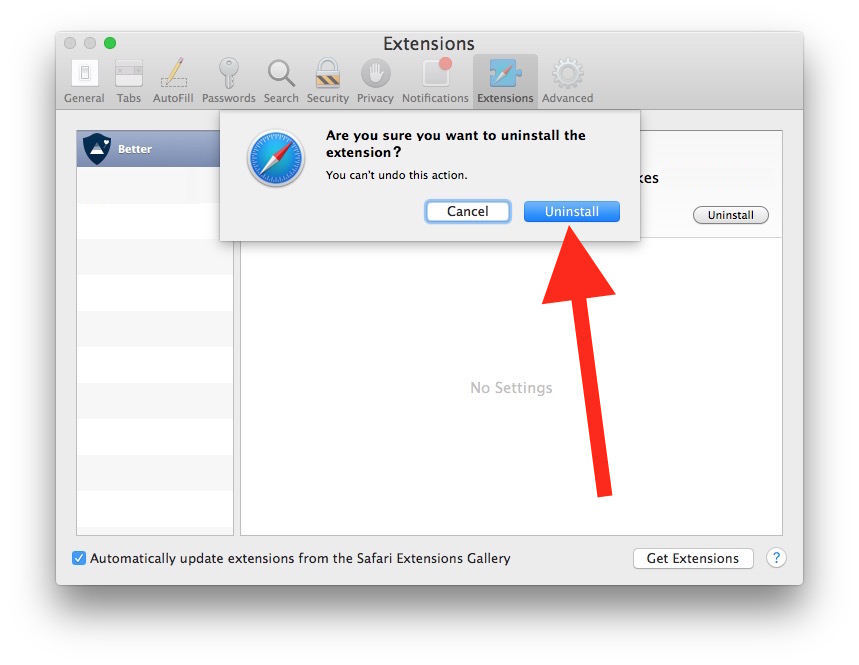
Note: There are no extensions by default installed on the Safari browser.
Remove Malicious Malware From Microsoft Edge
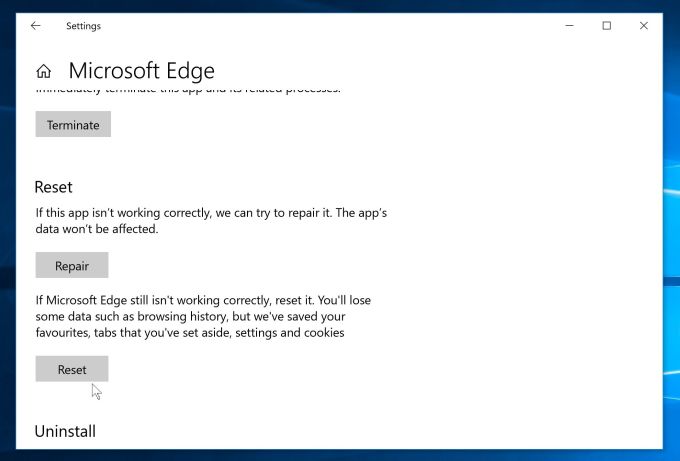
For removing up malware from Microsoft Edge, you have to reset the setting to default one.
- Apps and Features
- Go to the Start button on your PC and choose the “Apps and Features“option.
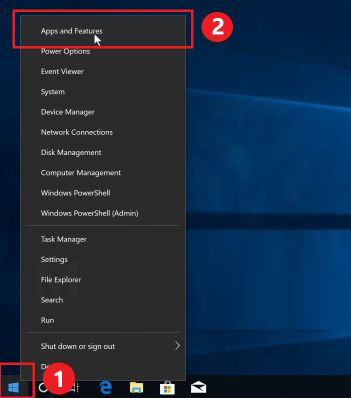
- Tapping to Apps and Features option will directly open the installed programs list.
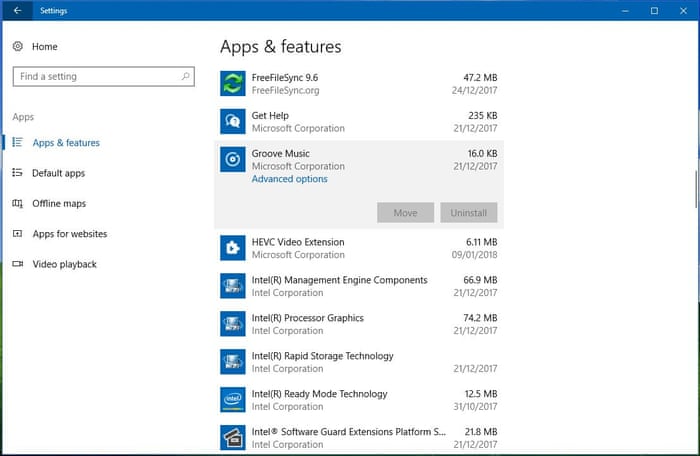
- Advanced Options
From this list of installed programs you have to find “Microsoft Edge” and tap it. After then hit the clickable “Advanced options” present just below the Microsoft edge program name.

- Reset
In the next opened Window of “Advanced Options” look for the “Reset” section. Once you get it just make a tap on the reset button.